How-To: إنشاء Annual Plan
المتطلبات المسبقة
- You must have the CAE or Manager role
- Audit Universe should be populated with entities and risk assessments
Step 1 — Navigate to Planning
Click Planning in the left sidebar.
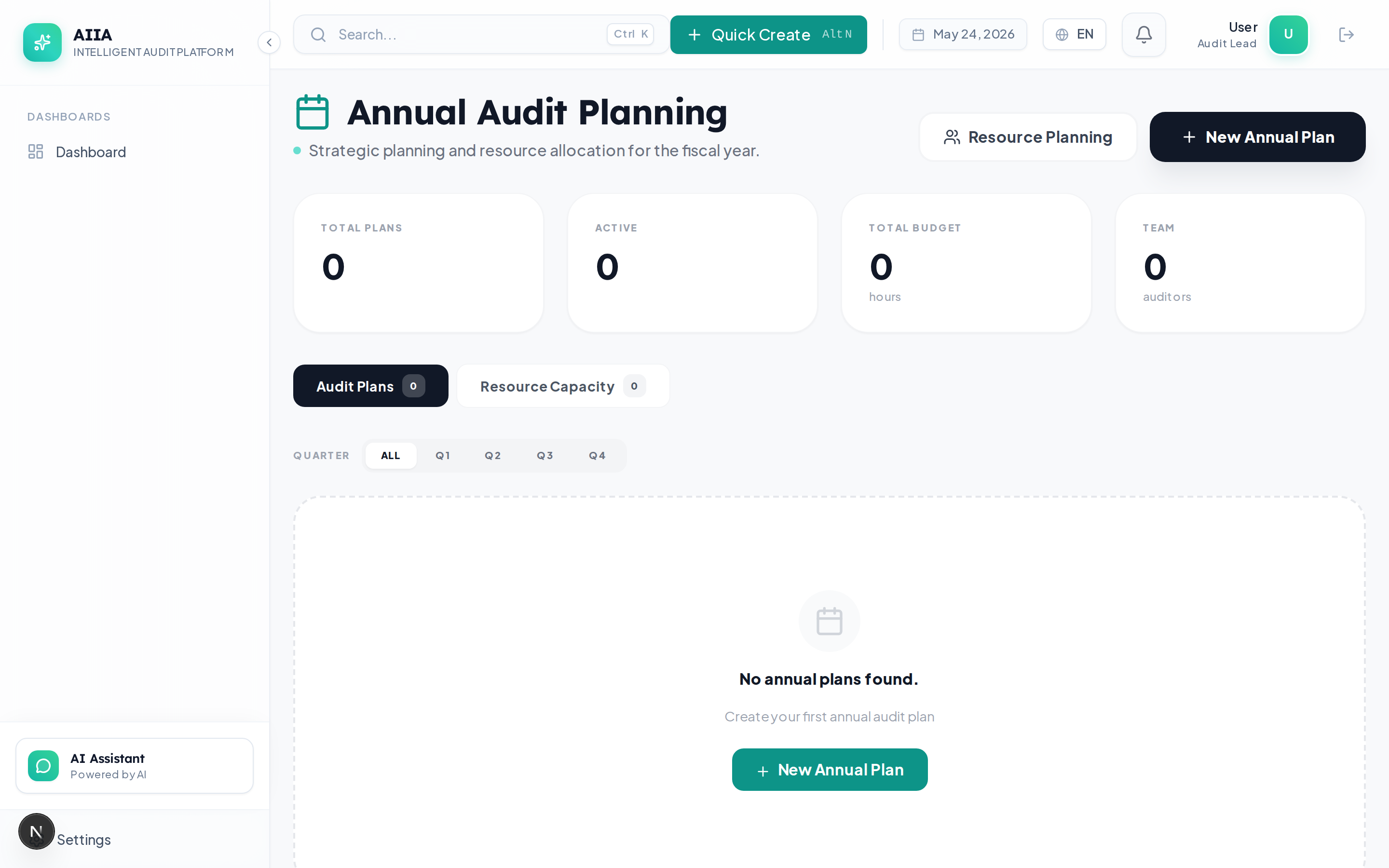
Step 2 — Click "New Annual Plan"
Click the + New Annual Plan button.
Step 3 — Set Plan Details
| Field | Required | Description |
|---|---|---|
| Plan Year | ✅ | The fiscal year (e.g., 2027) |
| Title | ✅ | Plan name (e.g., "FY2027 Internal Audit Plan") |
| Description | Recommended | Overview of the plan's objectives and scope |
| Owner | Auto | Defaults to current user (CAE) |
Step 4 — Add Plan Items
Each plan item represents a planned audit engagement. Click + Add Item for each:
| Field | Required | Description |
|---|---|---|
| Title | ✅ | Engagement name |
| Universe Item | ✅ | Link to Audit Universe entity |
| Type | ✅ | Compliance, Operational, Financial, IT, Special |
| Priority | Auto | Calculated from universe risk score |
| Planned Quarter | ✅ | Q1, Q2, Q3, or Q4 |
| Estimated Hours | Recommended | Budgeted hours for this engagement |
| Lead Auditor | Recommended | Primary assigned auditor |
AI-Assisted Item Generation
Click AI Generate Plan Items to have the AI suggest plan items based on:
- Universe items with the highest risk scores
- Entities not audited in the last 12+ months
- Previous findings requiring follow-up
- Regulatory requirements mandating periodic review
Review each suggestion and accept or reject individually.
Step 5 — Allocate Resources
Navigate to the Resources tab within the plan:
- View the Resource Calendar showing auditor availability
- Drag-assign auditors to plan items
- Monitor Capacity Utilization bars to prevent overcommitment
- Adjust planned quarters if resources are constrained
Expected Result
The capacity utilization bar turns amber (>80%) or red (>100%) when an auditor is overallocated. Resolve overallocation before submitting for approval.
Step 6 — Submit for Approval
When the plan is complete:
- Click Submit for Review
- The plan moves to "Under Review" status
- The CAE receives a notification to approve
- CAE reviews the plan, risk analysis, and resource allocation
- CAE approves → plan moves to "Approved" status
Step 7 — Execute the Plan
Once approved:
- Plan items can be converted to Engagements by clicking Create Engagement on each item
- Progress is tracked automatically as engagements move through their lifecycle
- The planning dashboard shows real-time completion percentage
Mid-Year Plan Revisions
Plans can be revised during the year:
- Click Revise Plan on an approved plan
- A new version is created (previous version is preserved)
- Make changes to items, resources, or timeline
- Re-submit for CAE approval
- Version comparison shows exactly what changed
أفضل الممارسات
- Start with risk data — populate the Audit Universe before planning
- Use AI suggestions — AI identifies coverage gaps you might miss
- Check capacity before approving — ensure no auditor exceeds 100% utilization
- Build in buffer — plan for 80% capacity to accommodate ad-hoc requests
- Review quarterly — reassess plan items based on emerging risks
- Document rationale — record why certain items were prioritized or deferred
ذات صلة Documentation
- Resource Allocation → — detailed resource management
- Risk-Based Scoring → — understand the algorithm
- Audit Universe — data that drives the plan