User Guide — Audit Client
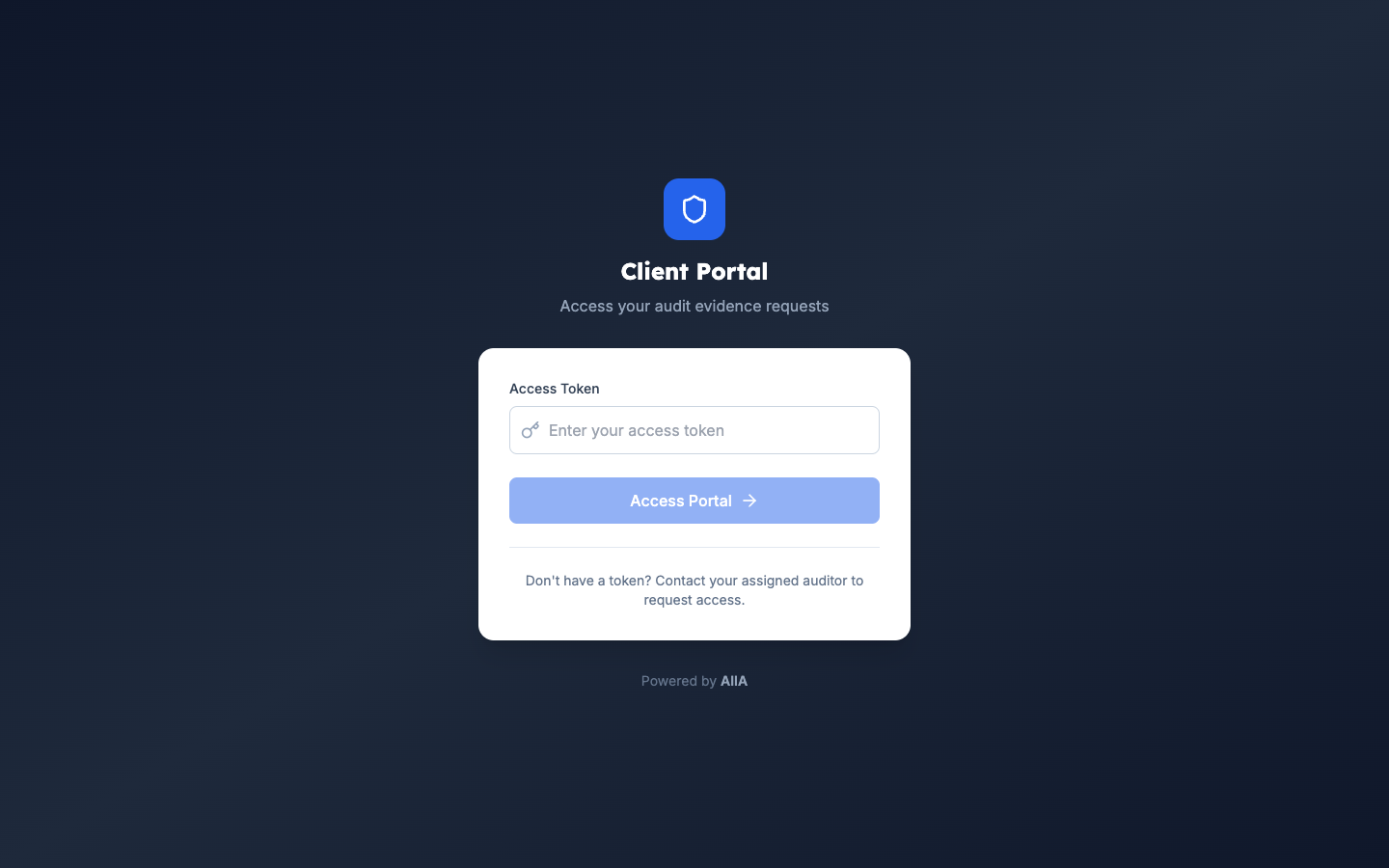
As an Audit Client, you use the Client Portal to view evidence requests from the audit team, upload documents, and track your submissions. You do NOT access the main AIIA application.
Accessing the Client Portal
- You will receive an email invitation with a login link
- Navigate to the portal URL provided (e.g.,
https://your-org.aiia.app/portal) - Log in with your portal credentials (separate from any internal AIIA accounts)
Your Portal Dashboard
After login, you see:
| Section | Description |
|---|---|
| Pending Requests | Evidence requests awaiting your response |
| Overdue | Requests past their due date (highlighted in red) |
| Submitted | Your submitted items awaiting auditor review |
| Accepted | Items accepted by the audit team |
| Rejected | Items that need revision |
Responding to a Request
Step 1 — View the Request
Click a request to see:
- What evidence is needed (description)
- Due date
- Priority level
- Related audit engagement
- Any notes from the auditor
Step 2 — Upload Evidence
- Click Upload File or drag files into the upload area
- Supported file types: PDF, Word, Excel, Images, ZIP
- Maximum file size: 50MB per file
- Add a comment explaining the uploaded file
- Click Submit
Step 3 — Track Status
After submission:
- Submitted — awaiting auditor review
- Accepted — auditor confirmed the evidence is adequate
- Rejected — auditor needs different or additional evidence (check their comments)
Important Notes
Security
- All uploaded files are virus-scanned and hash-verified
- You can only see requests assigned to you
- You cannot access any other part of the AIIA system
- All portal activity is audit-logged
What You Cannot Do
- ❌ Access the internal AIIA application
- ❌ View workpapers, findings, or reports
- ❌ See other clients' requests
- ❌ Delete previously uploaded files
- ❌ Modify submissions after acceptance
Need Help?
Contact your audit team liaison — their contact information is shown on each request.