How-To: Map Controls
Learn how to create controls, map them to risks, and track their effectiveness.
Prerequisites
- At least one risk statement must exist for the entity
- You must have the Auditor, Manager, or CAE role
Creating Controls
Step 1 — Navigate to the Library
Click Library in the sidebar to open the Risk & Control Library.
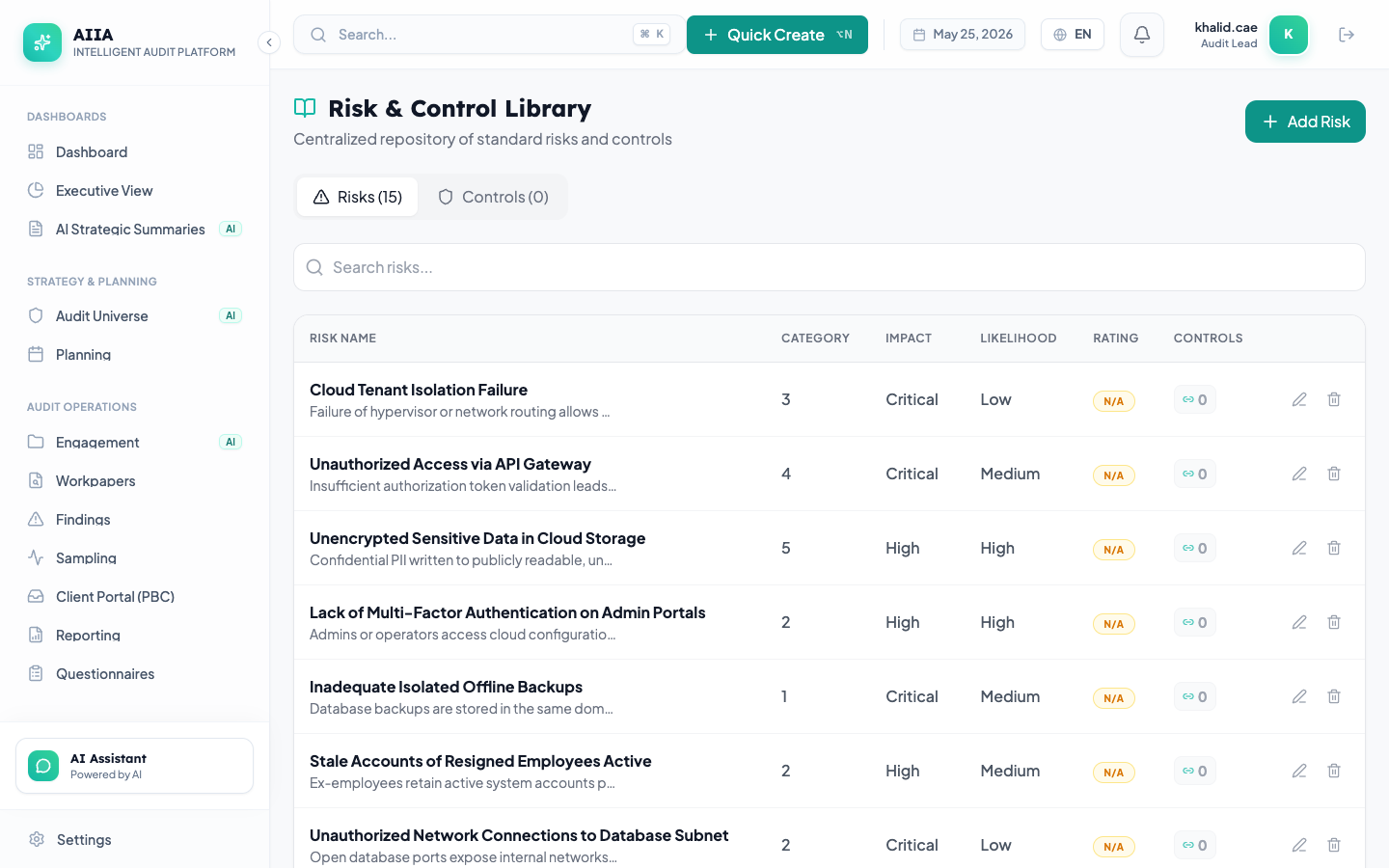
Step 2 — Go to Controls Tab
Click the Controls tab in the Library.
Step 3 — Click "New Control"
Click + New Control to open the creation form.
Step 4 — Complete Control Details
| Field | Required | Description |
|---|---|---|
| Control ID | Auto-generated | Unique identifier (e.g., CTRL-001) |
| Title | ✅ | Descriptive name (e.g., "Dual approval for payments > SAR 50,000") |
| Description | Recommended | Detailed control description including what, who, when, and how |
| Type | ✅ | Preventive, Detective, Corrective |
| Nature | ✅ | Manual, Automated, IT-Dependent Manual |
| Frequency | ✅ | Continuous, Daily, Weekly, Monthly, Quarterly, Annual, Ad-hoc |
| Owner | Recommended | Person responsible for executing this control |
| Effectiveness | Optional | Effective, Partially Effective, Ineffective, Not Tested |
Step 5 — Save
Click Save to create the control in the library.
Mapping Controls to Risks
Step 1 — Open the Entity or Risk
Navigate to the entity → Risks tab → click a specific risk.
Step 2 — Go to Controls Section
In the risk detail, scroll to the Mitigating Controls section.
Step 3 — Click "Link Control"
Click + Link Control to open the control search dialog.
Step 4 — Search and Select
- Search existing controls by name, ID, or description
- Select one or more controls to map
- Click Link Selected
Step 5 — Set Mapping Details
For each mapping, optionally set:
| Field | Description |
|---|---|
| Mapping Type | Primary or Secondary |
| Notes | Context for this specific risk-control linkage |
The control appears in the risk's "Mitigating Controls" list. The risk detail now shows a control coverage indicator. When all controls are effective, the residual risk may be automatically recalculated.
Control Effectiveness Testing
Controls are tested during engagement fieldwork. Results feed back into the Library:
| Effectiveness Rating | Meaning | Visual |
|---|---|---|
| Effective | Control operates as designed | 🟢 |
| Partially Effective | Control has gaps but provides some mitigation | 🟡 |
| Ineffective | Control does not mitigate the risk | 🔴 |
| Not Tested | Control has not been evaluated in current period | ⚪ |
Control Types Explained
| Type | Description | Example |
|---|---|---|
| Preventive | Stops errors/fraud before they occur | Approval workflow, access restrictions |
| Detective | Identifies errors/fraud after they occur | Reconciliations, exception reports, monitoring |
| Corrective | Fixes issues after detection | Incident response, remediation procedures |
AI-Assisted Control Mapping
The AI companion can suggest control mappings:
- Open a risk statement
- Click AI Suggest Controls
- AI recommends controls based on:
- Industry standard control frameworks (COSO, COBIT)
- Existing controls in your library for similar risks
- Regulatory requirements (NCA ECC control requirements)
- Review and apply suggestions
Best Practices
- Avoid orphan controls — every control should be mapped to at least one risk
- Avoid orphan risks — every risk should have at least one mitigating control
- Test regularly — control effectiveness should be re-evaluated at least annually
- Document design vs operating — capture both design adequacy and operational effectiveness
- Use the control library — centralize controls to avoid duplication across entities
Related Documentation
- Manage Risks → — Create and assess risks first
- Field Reference → — Complete field documentation
- Fieldwork — test controls during engagement execution
- Compliance Frameworks — map framework controls to library controls