PBC Portal — For Clients
As an audit client, you use the PBC Portal to receive document requests from the audit team, upload required files, and communicate through comments. This guide explains how to navigate the client portal.
Accessing the Portal
Your organization's audit team will send you an invitation link. You can access the PBC portal via:
- Direct link — in the email notification
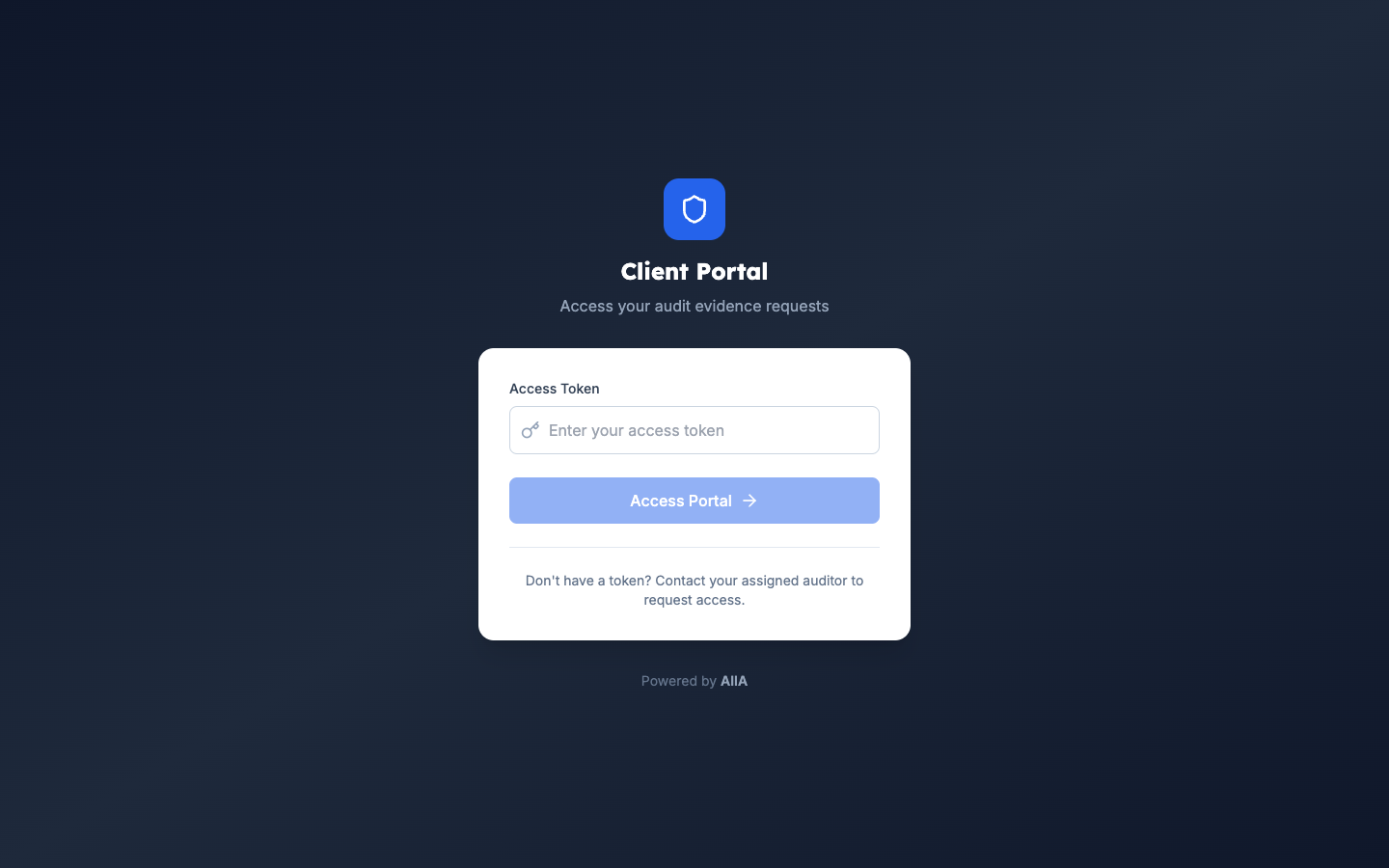
- Client Portal login — at your organization's AIIA portal URL
Your Dashboard
After logging in, you see:
- Open Requests — documents the audit team needs from you
- Overdue Items — requests past their due date
- Submitted — items you've already uploaded
- Returned — items the auditor has returned for clarification
Responding to Requests
Step 1 — Review the Request
Each request contains:
- A title explaining what is needed
- A description with context
- Individual request items (specific documents)
- A due date
Step 2 — Upload Documents
For each request item:
- Click the item
- Click Upload or drag and drop your file
- Add an optional note explaining what you're submitting
- Click Submit
Supported formats: PDF, Word, Excel, Images, ZIP (max 50 MB per file)
Step 3 — Mark as Complete
When you've uploaded all items for a request:
- Review that all items have submissions
- Click Mark as Complete
- The request status changes to SUBMITTED
- The audit team is notified
Comments
Use comments to communicate with the audit team:
- Ask for clarification on what's needed
- Explain the context of your submission
- Respond to returned items
- Comments are visible to both you and the audit team
Returned Items
If an auditor returns an item:
- You'll receive a notification
- The item's status changes to RETURNED
- Check the auditor's comment for what needs to change
- Upload the corrected document
- Resubmit
Security
- All uploads are virus-scanned automatically
- Files are encrypted in storage
- Your access is limited to requests assigned to you
- All actions are logged for audit trail purposes
Tips
- Upload documents as early as possible to avoid delays
- Use clear filenames (e.g., "Q4-2026-GL-Detail.xlsx")
- Add notes to explain the content of complex documents
- Check for returned items regularly